
About Click to Pay
With Click to Pay, you don't need to enter your card details every time you check out online - making it easier to pay in just a few clicks.

Click to Pay is a simple, secure way to make purchases online. At participating online retailers, you can select your TSB debit or credit card at checkout without having to enter your card details each time.
If Click to Pay is available for your card, we’ll set it up for you automatically - there’s no need to sign up.
- Check out faster: Save time by not having to enter your card number, expiry date and security code every time you check out online. Just look for the Click to Pay icon at checkout.
- Mastercard uses advanced security to encrypt your information and protect your payment details.
- You’re in control: Manage Click to Pay through ‘Cards’ in TSB mobile app or online banking, or by contacting us.
Step 1: When you’re shopping online, look for the Click to Pay icon at participating retailers
Step 2: Enter the email address or mobile number you have registered with TSB
Step 3: The first time you use Click to Pay, you'll need to confirm it's you using a one-time code sent to your mobile by text
Step 4: Choose your preferred TSB card, check your payment details and complete your purchase.
Once your device and browser are recognised, you usually won't need to enter a one-time code each time.
Click to Pay is designed to make online checkout easier - but it's your choice whether you use it.
If you don’t want to use Click to Pay, you can keep using your card as usual. You can also turn Click to Pay off at any time through ‘Cards’ in the TSB mobile app or online banking, or by contacting us. If you change your mind, you can turn it back on whenever you like.
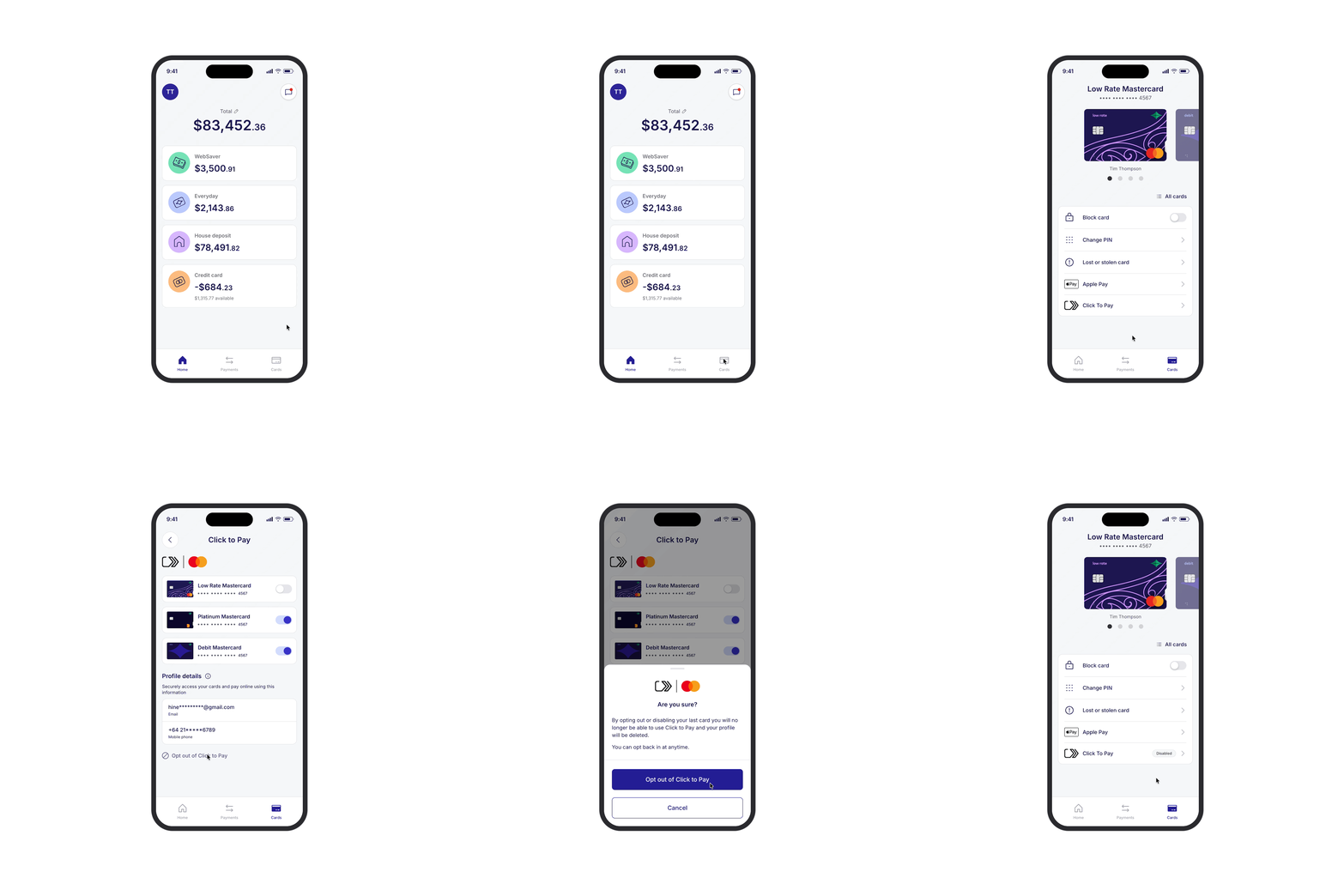
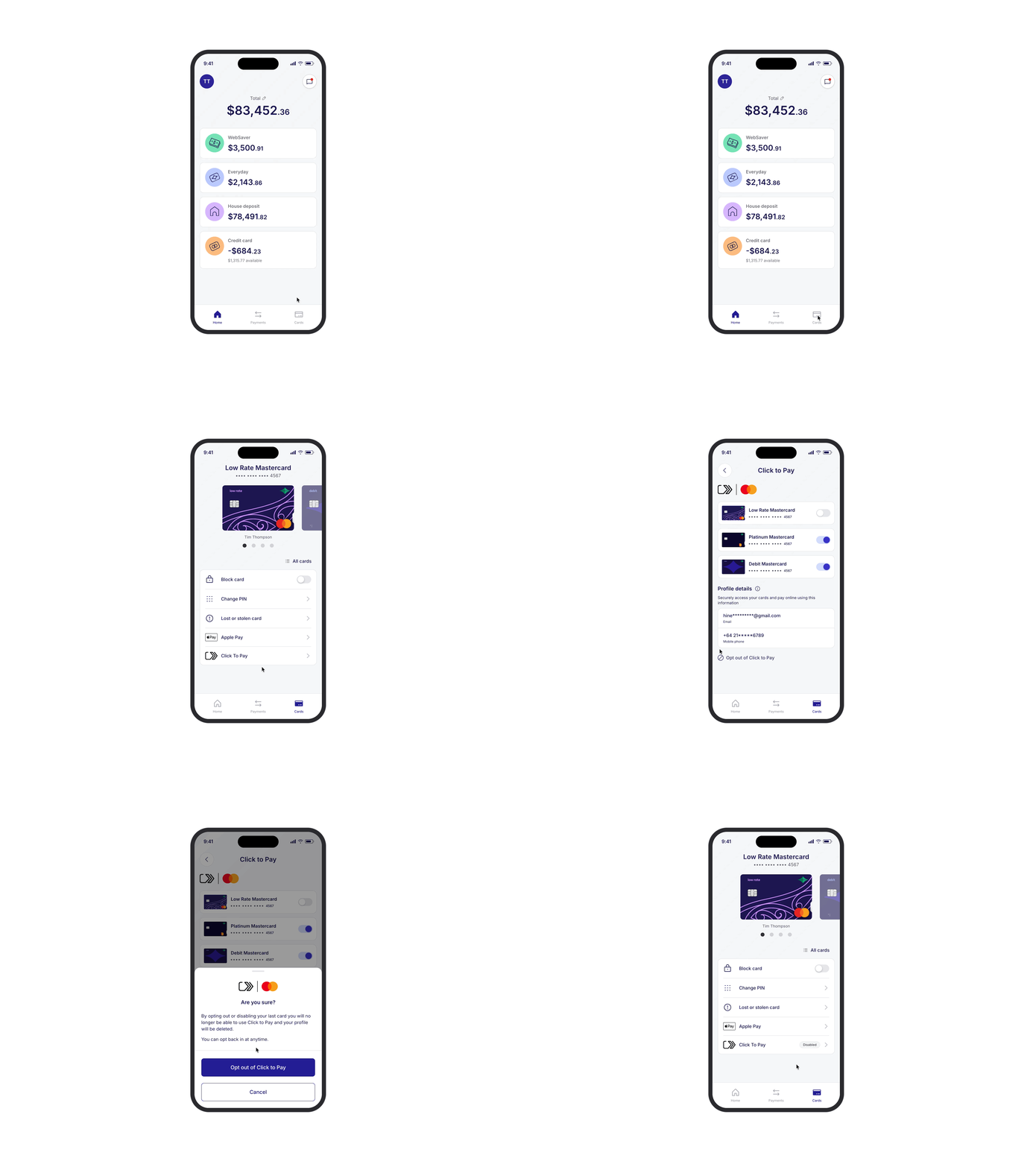
Tip: If you can’t see Click to Pay in the TSB mobile app, check that you have the latest version (3.3.0). Go to the App Store or Google Play, search for the TSB Bank New Zealand app, then select Update if it’s available.
Understand and manage Click to Pay
Important information
Mastercard’s Click to Pay Terms of Use and Click to Pay Privacy Notice apply.
Mastercard® and the circles design are registered trademarks of Mastercard International Incorporated.
The Click to Pay icon is a trademark owned by and used with permission of EMVCo, LLC.